Managing my profile
How to edit and update my profile?
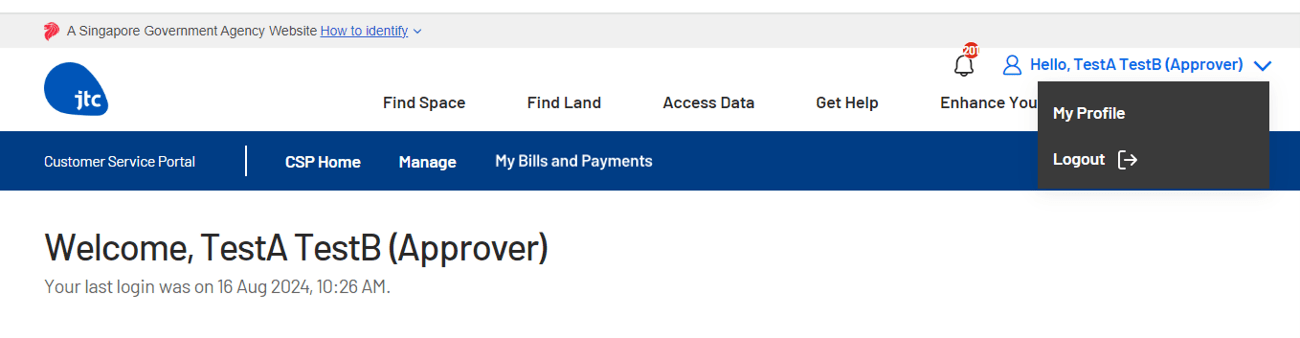
Step 1:
Click on user’s name, then “My Profile”
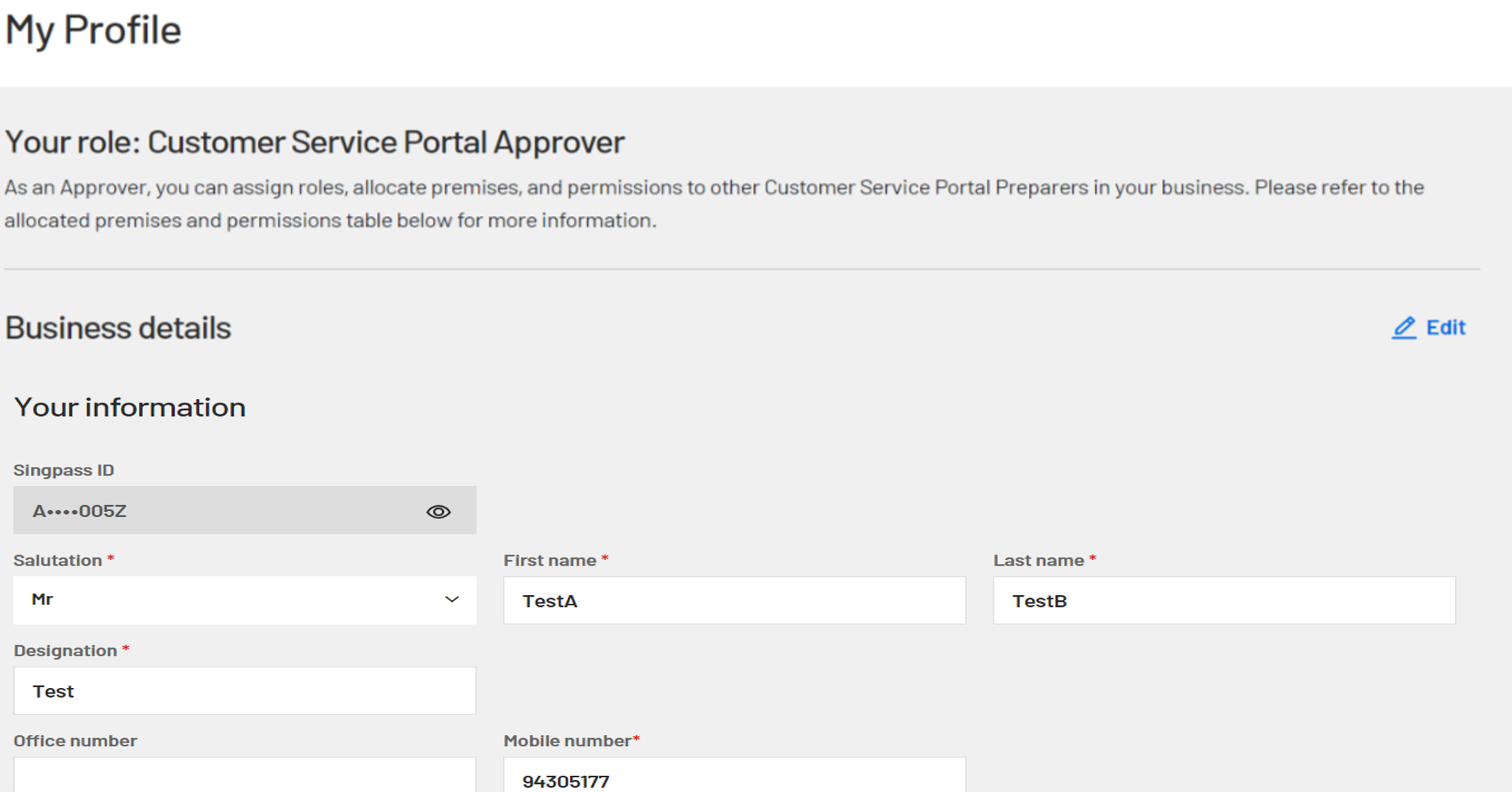
Step 2:
Click on “Edit” to update contact details
Managing users and permissions
The “My Users” function is available only to Approvers. Approvers can add or delete users and manage their permissions for the relevant JTC allocations.
How to add users?
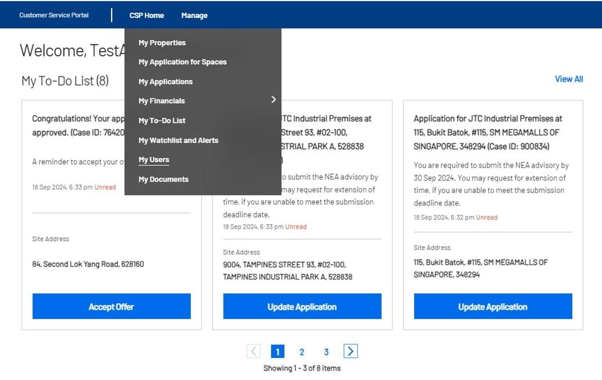
Step 1:
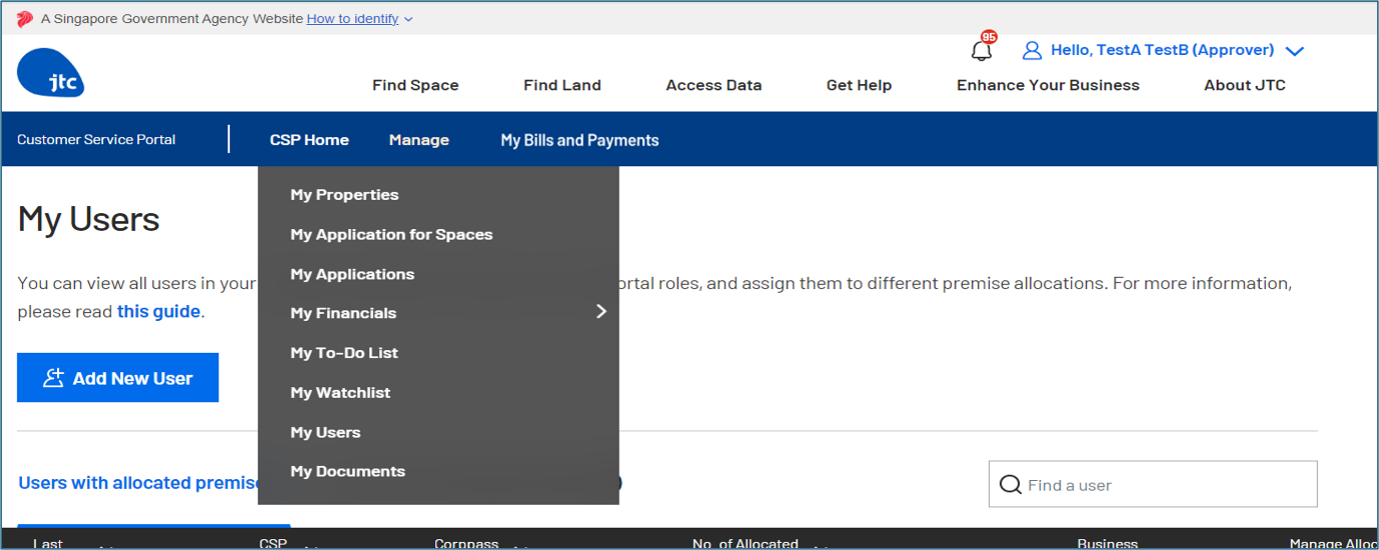
Click on "Manage", then "My Users".
Step 2:
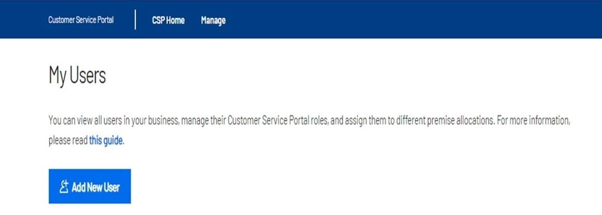
Click "Add New User".
Step 3:
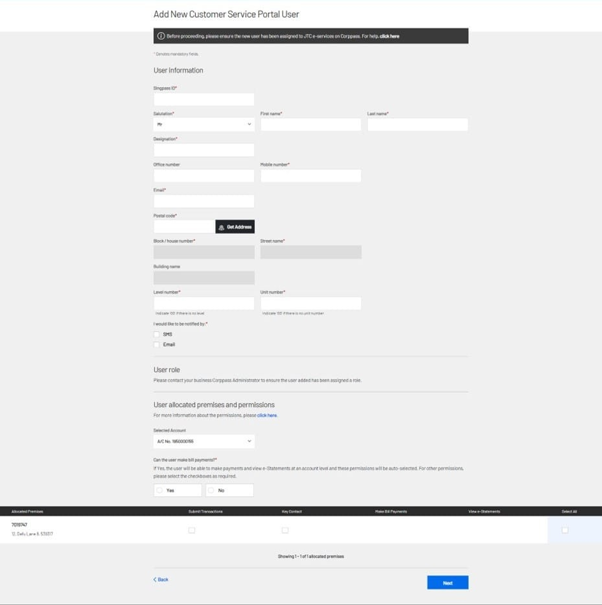
Fill in the details of the new user. You can also assign permissions to the user at this step.
Step 4:
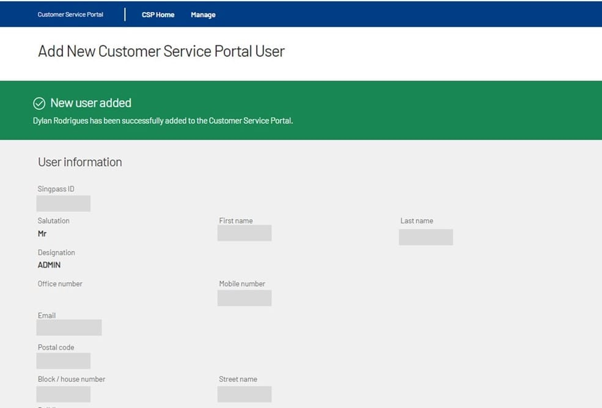
You have added a new user.
How to assign users’ permissions?
Step 1:
Click on “Manage”, then “My Users”.
Step 2:
Select User and click on “Edit”.
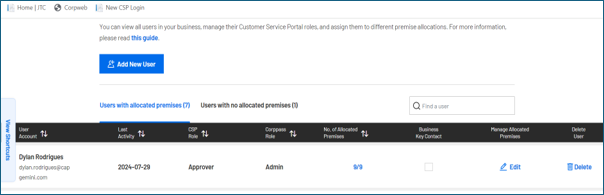
To assign permissions:
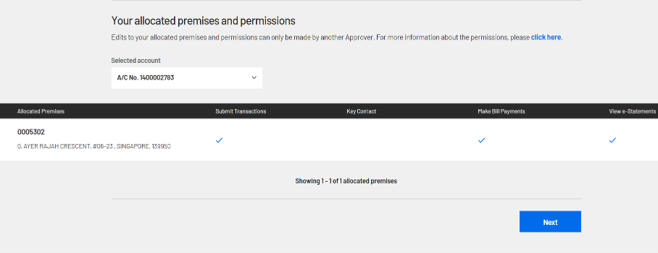
1) Select the relevant account.
2) Review the JTC allocations listed under the corresponding account
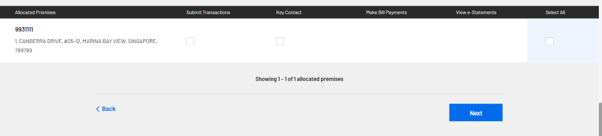
3) Assign the required permissions. The available permissions include:
- Submit Transactions
- Key Contact at allocation level
- Make Bill Payments
- View e-statements
To grant all available permission at once, select “Select All”
4) Select “Next” to save your changes.
How to remove users’ permissions?
If all permissions are removed, the user will no longer have any allocated permissions for the selected account.
Step 1:
Select User and click on “Edit”.
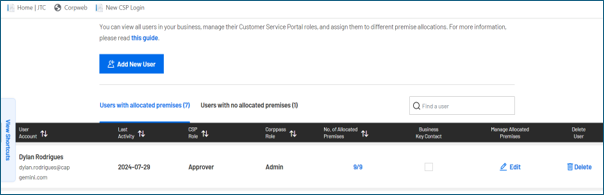
Step 2:
Click on “Edit” to update user details.
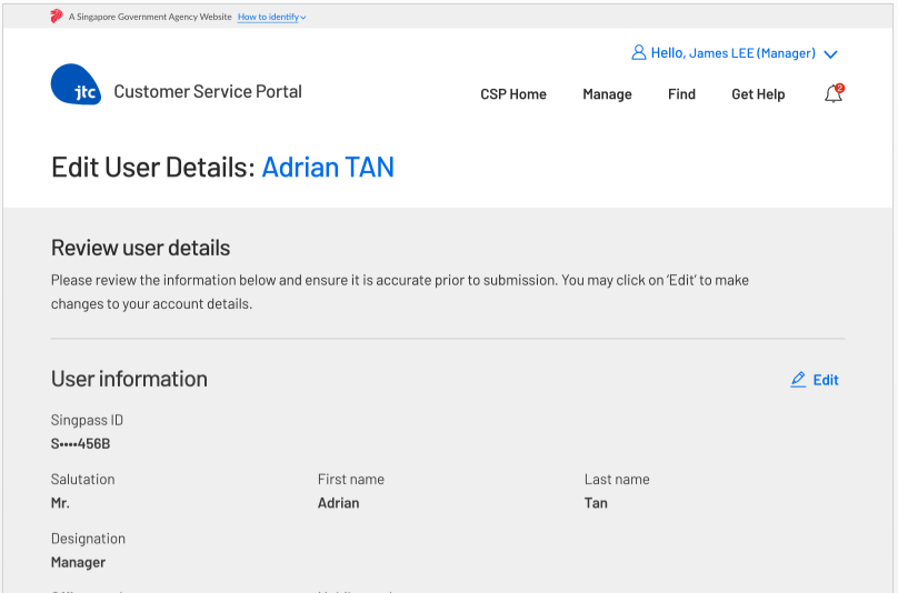
Step 3:
Check or uncheck relevant permissions available and select “Next” to save your changes.
How to delete a user?
Step 1:
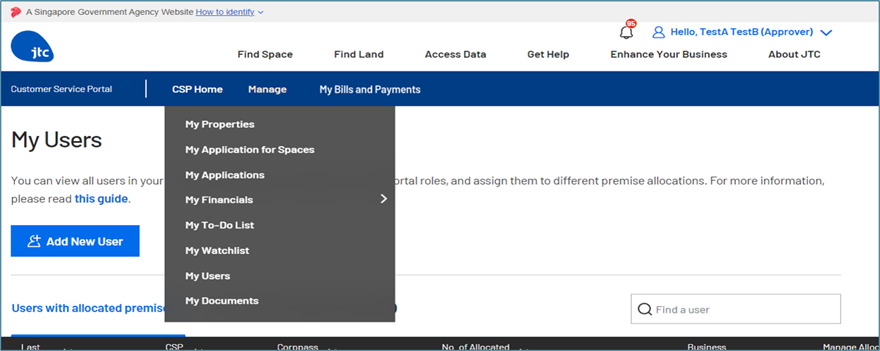
Click on “Manage”, then “My Users”.
Step 2:
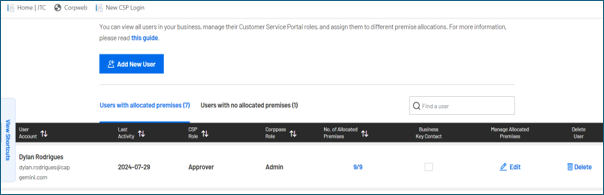
Select User and click on “Delete".
Step 3:
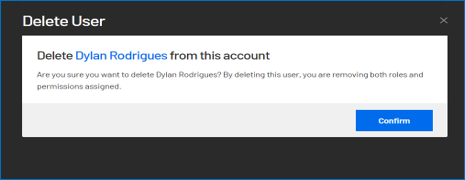
Click on “Confirm” to delete.
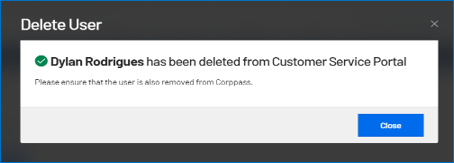
Step 4:
Click on “Close” to complete deletion